Use the Font Color function to change the font color used in the report title. By default, the report title is colored according to the selected design theme, but you can change the color from the Font Color dropdown menu (green arrow) in the Report ribbon. This option opens the Color Picker.
Accessing the Color Picker
From the Report ribbon:
- Click the Font Color dropdown menu (green arrow below):
- Select your required Font Color from the Color Picker dialog. For more details about the options available in this dialog, see Color Picker.

The Color Picker dialog opens:
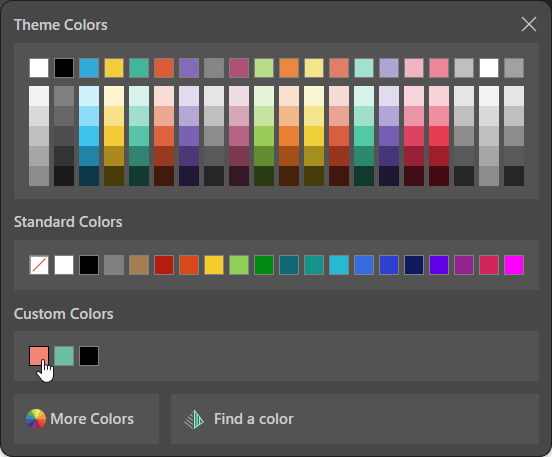
The Font Color is updated.
Example
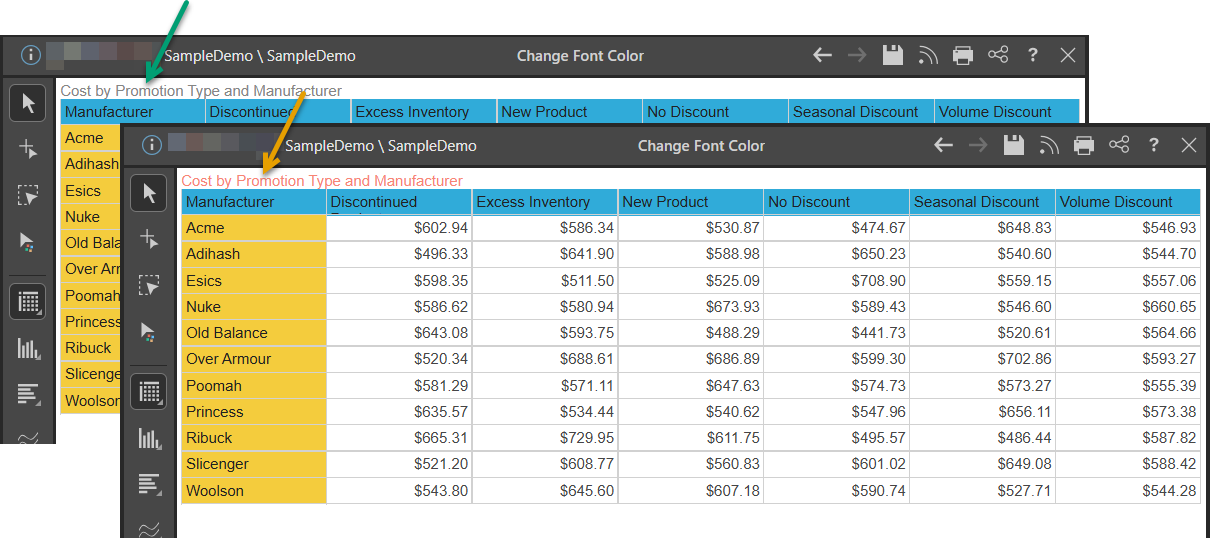
This example shows the default color for the selected theme (green arrow) and how it is updated if you change the font color from the Home ribbon (orange arrow).
Tip: If you want to return to the original Font Color, you can either use the Undo arrow in the Status Bar to reverse your last change or, if you are happy to reverse all formatting changes, you can click Reset Formatting in the Design ribbon. For more information, see Reset Formatting.